OIDC-Based Binding
This page covers how to deploy the klutch-bind backend with OIDC authentication, enabling secure communication between the Control Plane and App Clusters.
Deploy klutch-bind Backend
The klutch-bind backend is a crucial component within the Klutch Control Plane Cluster, facilitating secure communication between the Control Plane and App Clusters. For more information, please refer to the architecture page.
Install a Certificate Manager (Prerequisite)
Before deploying klutch-bind, ensure that a certificate manager (such as cert-manager) is installed to handle TLS certificates. If it is not installed, deploy it using:
kubectl apply -f https://github.com/cert-manager/cert-manager/releases/latest/download/cert-manager.yaml
Modify APIServiceExportTemplates
Navigate to the klutch-bind deployment directory:
cd /path/to/klutchio/bind/deploy/resources
Edit kustomization.yaml and uncomment the services you need (e.g., PostgreSQL). Then apply the modified Kustomization:
kubectl apply --kustomize /path/to/klutchio/bind/deploy/resources
Authentication Protocol Configuration
To manage user authentication, Klutch uses OpenID Connect (OIDC) for Single Sign-On (SSO).
To enable bindings, the OIDC backend must support the client credentials grant type. This setup requires an audience mapper that adds klutch-bind as an audience in issued tokens. An audience mapper allows adding or modifying token audiences to specify which applications or services can use them. You can find an example of how to set up OIDC with Keycloak here.
Deploy the Backend
It is recommended to deploy the backend in the bind namespace, which was created during the Klutch deployment.
Before applying the following YAML configuration, replace the placeholder values (<>) with actual values:
| Placeholder | Description |
|---|---|
| <signing-key> | Cookie signing key. Generate with openssl rand -base64 32. |
| <encryption-key> | Cookie encryption key. Generate with openssl rand -base64 32. |
| <certificate> | Base64-encoded certificate of the Control Plane Cluster. Found in clusters.certificate-authority-data in the KubeConfig. |
| <kubernetes-api-external-name> | External URL of the Kubernetes API server. Found in clusters.server in the KubeConfig. |
| <oidc-issuer-client-url> | OIDC client URL, provided by your OIDC provider. |
| <oidc-issuer-client-secret> | OIDC client secret, available in your OIDC provider's settings. |
| <backend-host> | External address of the Klutch backend. Retrieve it from the LoadBalancer service using kubectl get services -n bind (value of EXTERNAL-IP). |
| <add-your-email-here> | Email for Certificate Authority registration (e.g., Let's Encrypt via ACME). Update the Issuer in the YAML if using a different CA. |
Deployment Considerations
- Ingress Controller: The instructions assume the use of Nginx Ingress Controller. If using a different controller,
update
ingressClassNameinnetworking.k8s.io/v1/Ingressaccordingly. - Certificate Authority: This setup assumes Let's Encrypt CA with the ACME protocol. If using a different CA,
update
cert-manager.io/v1/Issuerandnetworking.k8s.io/v1/Ingress.
Now, create a file named backend.yaml using the template below. Replace the placeholders with the appropriate values.
Click to reveal the YAML configuration template for the backend
---
apiVersion: apps/v1
kind: Deployment
metadata:
  name: anynines-backend
  namespace: bind
  labels:
    app: anynines-backend
spec:
  replicas: 1
  selector:
    matchLabels:
      app: anynines-backend
  strategy:
    type: Recreate
  template:
    metadata:
      labels:
        app: anynines-backend
    spec:
      serviceAccountName: anynines-backend
      containers:
        - name: anynines-backend
          image: public.ecr.aws/w5n9a2g2/klutch/example-backend:v1.5.0
          args:
            - --namespace-prefix=cluster
            - --pretty-name=anynines
            - --consumer-scope=Namespaced
            - --oidc-issuer-client-id=$(OIDC-ISSUER-CLIENT-ID)
            - --oidc-issuer-client-secret=$(OIDC-ISSUER-CLIENT-SECRET)
            - --oidc-issuer-url=$(OIDC-ISSUER-URL)
            - --oidc-callback-url=$(OIDC-CALLBACK-URL)
            - --listen-address=0.0.0.0:9443
            - --cookie-signing-key=$(COOKIE-SIGNING-KEY)
            - --cookie-encryption-key=$(COOKIE-ENCRYPTION-KEY)
            - --external-address=<kubernetes-api-external-name>
            - --external-ca-file=/certa/ca
          env:
            - name: OIDC-ISSUER-CLIENT-ID
              valueFrom:
                secretKeyRef:
                  name: oidc-config
                  key: oidc-issuer-client-id
            - name: OIDC-ISSUER-CLIENT-SECRET
              valueFrom:
                secretKeyRef:
                  name: oidc-config
                  key: oidc-issuer-client-secret
            - name: OIDC-ISSUER-URL
              valueFrom:
                secretKeyRef:
                  name: oidc-config
                  key: oidc-issuer-url
            - name: OIDC-CALLBACK-URL
              valueFrom:
                secretKeyRef:
                  name: oidc-config
                  key: oidc-callback-url
            - name: COOKIE-SIGNING-KEY
              valueFrom:
                secretKeyRef:
                  name: cookie-config
                  key: signing-key
            - name: COOKIE-ENCRYPTION-KEY
              valueFrom:
                secretKeyRef:
                  name: cookie-config
                  key: encryption-key
          resources:
            limits:
              cpu: "2"
              memory: 2Gi
            requests:
              cpu: "100m"
              memory: 256Mi
          volumeMounts:
            - name: ca
              mountPath: /certa/
      volumes:
        - name: oidc-config
          secret:
            secretName: oidc-config
        - name: cookie-config
          secret:
            secretName: cookie-config
        - name: ca
          secret:
            secretName: k8sca
            items:
              - key: ca
                path: ca
---
apiVersion: v1
kind: Secret
metadata:
  name: cookie-config
  namespace: bind
type: Opaque
stringData:
  signing-key: "<signing-key>" # run: "openssl rand -base64 32"
  encryption-key: "<encryption-key>" # run: "openssl rand -base64 32"
---
apiVersion: v1
kind: Secret
metadata:
  name: k8sca
  namespace: bind
type: Opaque
stringData:
  ca: |
    <certificate>
---
apiVersion: v1
kind: Secret
metadata:
  name: oidc-config
  namespace: bind
type: Opaque
stringData:
  oidc-issuer-client-id: "klutch-bind"
  oidc-issuer-client-secret: "<oidc-issuer-client-secret>"
  oidc-issuer-url: "<oidc-issuer-client-url>"
  oidc-callback-url: "https://<backend-host>:443/callback"
---
apiVersion: v1
kind: ServiceAccount
metadata:
  name: anynines-backend
  namespace: bind
---
apiVersion: rbac.authorization.k8s.io/v1
kind: ClusterRoleBinding
metadata:
  name: anynines-backend
  namespace: bind
roleRef:
  apiGroup: rbac.authorization.k8s.io
  kind: ClusterRole
  name: cluster-admin
subjects:
  - kind: ServiceAccount
    name: anynines-backend
    namespace: bind
---
apiVersion: networking.k8s.io/v1
kind: Ingress
metadata:
  name: anynines-backend
  namespace: bind
  annotations:
    cert-manager.io/issuer: letsencrypt-prod # Adjust if not Let's Encrypt
spec:
  ingressClassName: nginx # Adjust if not Nginx Ingress Controller
  tls:
    - secretName: anynines-backend-tls
      hosts:
        - "<backend-host>"
  rules:
    - host: "<backend-host>"
      http:
        paths:
          - pathType: Prefix
            path: "/"
            backend:
              service:
                name: anynines-backend
                port:
                  number: 443
---
apiVersion: cert-manager.io/v1
kind: Issuer
metadata:
  name: letsencrypt # Adjust if not  Let's Encrypt
  namespace: bind
spec:
  acme:
    # The ACME server URL
    server: https://acme-v02.api.letsencrypt.org/directory # Adjust if not Let's Encrypt
    email: <add-your-email-here>
    # Name of a secret used to store the ACME account private key
    privateKeySecretRef:
      name: letsencrypt # Adjust if not  Let's Encrypt
    # Enable the HTTP-01 challenge provider
    solvers:
      - http01:
          ingress:
            class: nginx # Adjust if not Nginx Ingress Controller
After replacing the placeholder values, apply the file:
kubectl apply -f backend.yaml
Setting up the App Cluster
Connecting an App Cluster to the Klutch Control Plane allows developers to provision data services using an automation backend. This guide walks through the binding process, including authentication, deploying the konnector (a Kubernetes Deployment), and enabling Klutch APIs in the App Cluster.
Prerequisites
Before you begin, ensure you have the following:
- A running Kubernetes cluster
- kubectl installed and configured to interact with your App Cluster
- Network access to the Klutch Control Plane cluster
- OIDC credentials for authentication, provided by your platform operator or the team responsible for setting up the Klutch Control Plane Cluster
Installing the Klutch-bind CLI
Before binding an App Cluster, install the kubectl-bind plugin (which we refer to as the klutch-bind CLI) and add it to your system’s PATH.
- MacOS
- Linux
- Windows
Download links:
Open the folder to where you downloaded the file and open a terminal window
I. Create a new directory to add to your PATH environment variable
mkdir -p <installation-directory>/bin
II. Give the folder executable permission
chmod 755 <installation-directory>/bin
III. Copy the binary to the newly created folder
cp ./kubectl-bind <installation-directory>/bin
IV. Add the path to PATH environment variable
export PATH=$PATH:<installation-directory>/bin
V. If everything is configured correctly you should see some output when you run the following command
kubectl bind
When running the command above, you might encounter the error message:
'kubectl-bind' can't be opened because Apple cannot check it for malicious software.
To resolve this error, you can follow the instructions provided here.
Download links:
Open the folder to where you downloaded the file and open a terminal window
I. Create a new directory to add to your PATH environment variable
mkdir -p <installation-directory>/bin
II. Give the folder executable permission
chmod 755 <installation-directory>/bin
III. Copy the binary to the newly created folder
cp ./kubectl-bind <installation-directory>/bin
IV. Add the path to PATH environment variable
export PATH=$PATH:<installation-directory>/bin
V. If everything is configured correctly you should see some output when you run the following command
kubectl bind
Download links:
Open the folder to where you downloaded the file and open a terminal window
I. Create a directory anywhere you feel is appropriate and move the executable to that folder.
II. Copy the path of the folder containing the executable.
III. Right-click My Computer(either on the Desktop or the Start menu) and click Properties.
IV. In the System Properties dialog box, click the Advanced tab and click Environment Variables.
V. In the top list, scroll down to the PATH variable, select it, and click Edit. Click New and enter PATH for the Variable Name. In the Variable Value box, scroll to the end of the variable. If there is no semi-colon (;) at the end of the current path, add one, and then enter the path to the executable folder. Finally, click OK.
VI. If everything is configured correctly you should see some output when you run the following command
kubectl bind
Binding to Klutch APIs
Binding to Klutch's APIs allows the App Cluster to provision and manage data services through Klutch.
Execute the following command, replacing <backend-host> with the hostname of the Klutch Control Plane:
kubectl bind https://<backend-host>:443/export --konnector-image=public.ecr.aws/w5n9a2g2/klutch/konnector:v1.4.0
The following actions will be performed as a result of this command:
-
The kubectl-bind plugin initiates the OIDC authentication process and automatically installs the konnector in the App Cluster during the first binding request.
-
A browser window will open, prompting you to log in with your OIDC credentials. Grant access to the OIDC client and confirm in the terminal when prompted.
The API binding process must be completed one service at a time. If binding multiple services, repeat the kubectl-bind command and log in again as needed.
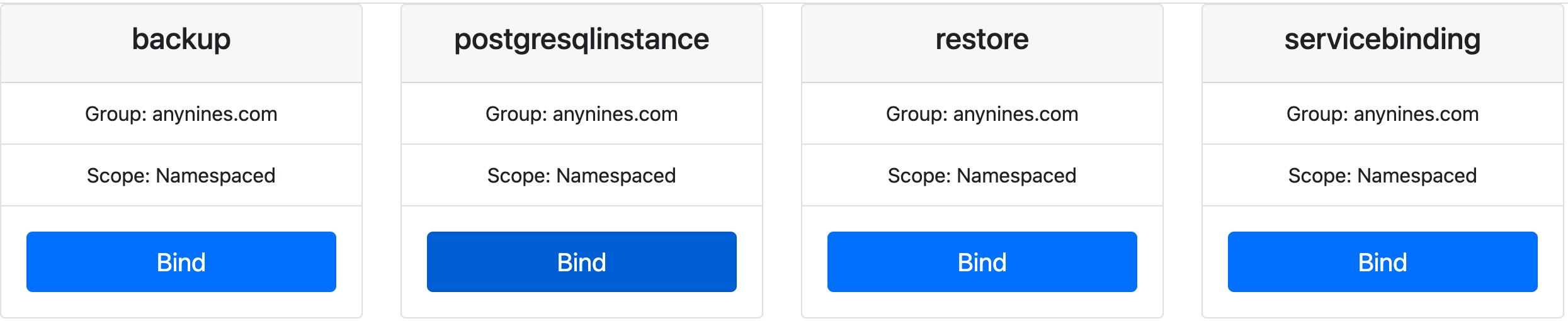
Once authentication is complete, you can select the service to bind using the Klutch web UI, as shown in the following image:
You can now start provisioning data services, your App Cluster is fully configured and ready to go! 🚀
Installing konnector without kubectl-bind (Optional)
For automated CI workflows, you may prefer to install the konnector manually instead of relying on kubectl-bind. Before applying the manifest, ensure you're using the latest konnector image by checking the latest version here.
To deploy the konnector manually, apply the following Kubernetes manifest:
apiVersion: v1
kind: Namespace
metadata:
  name: kube-bind
---
apiVersion: rbac.authorization.k8s.io/v1
kind: ClusterRole
metadata:
  name: klutch-bind-konnector
rules:
  - apiGroups: ["*"]
    resources: ["*"]
    verbs: ["*"]
---
apiVersion: rbac.authorization.k8s.io/v1
kind: ClusterRoleBinding
metadata:
  name: klutch-bind-konnector
roleRef:
  apiGroup: rbac.authorization.k8s.io
  kind: ClusterRole
  name: klutch-bind-konnector
subjects:
  - kind: ServiceAccount
    name: konnector
    namespace: kube-bind
---
apiVersion: v1
kind: ServiceAccount
metadata:
  name: konnector
  namespace: kube-bind
---
apiVersion: apps/v1
kind: Deployment
metadata:
  name: konnector
  namespace: kube-bind
  labels:
    app: konnector
spec:
  replicas: 2
  selector:
    matchLabels:
      app: konnector
  template:
    metadata:
      labels:
        app: konnector
    spec:
      restartPolicy: Always
      serviceAccountName: konnector
      containers:
        - name: konnector
          image: public.ecr.aws/w5n9a2g2/klutch/konnector:v1.4.0
          env:
            - name: POD_NAME
              valueFrom:
                fieldRef:
                  fieldPath: metadata.name
            - name: POD_NAMESPACE
              valueFrom:
                fieldRef:
                  fieldPath: metadata.namespace
By applying the provided manifest file, you only install the konnector component; the App Cluster is not yet bound to the Klutch API.
If you need to update an existing konnector deployment, follow the instructions on the Updating Klutch Components page.